

Setup
1
Connect it to your ERAM Keyboard
Plug the KSD into your ERAM Keyboard using the included USB-C to USB-C cable. No drivers or additional setup are required.
The KSD also works when connected directly to your computer. Depending on your computer’s USB ports, you may need a different cable than the one included.
2
Launch CRC
CRC will automatically recognize the KSD on startup, or when plugged in during an existing session.
3
Start controlling!
Activate your controlling session and you’re good to go.
Note that CRC must be in focus with an active ERAM display for the KSD to function properly. CRC does not recognize key presses if a different application is in focus.
Keyboard layout
The image below shows the full keyboard layout. Each key is labeled with a number, which is referenced in the keymap table on this page.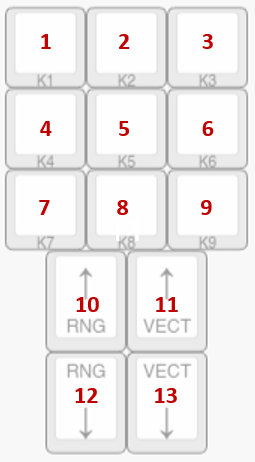
Functionality
The KSD is recognized by your computer as a game controller namedKSD Keyboard, meaning that the keys behave like joystick button inputs instead of regular keyboard keys. CRC has been specifically programmed to recognize these inputs and map them to their intended ERAM functions.
The KSD has no functionality outside of CRC.
Keymap
The K1-K9 keys are planned to become functional in future versions of CRC.